
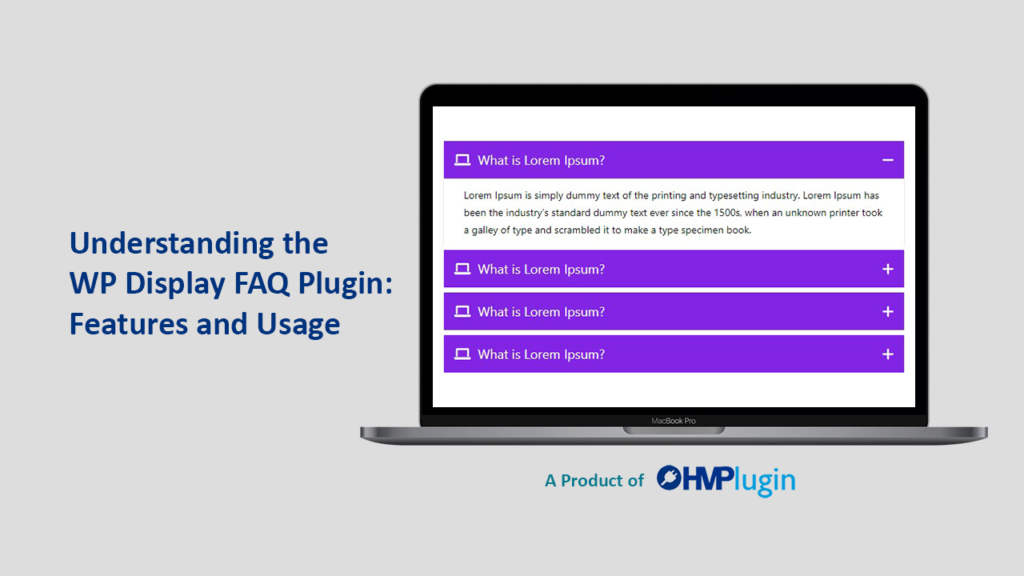
Introduction to WP Display FAQ Plugin
The WP Display FAQ Plugin serves a vital role in the WordPress ecosystem by providing an efficient solution for integrating Frequently Asked Questions (FAQs) into websites. In today’s digital landscape, having a dedicated FAQ section is paramount for enhancing user experience, as it addresses common inquiries, reducing the need for direct customer support and improving overall satisfaction.
This plugin aims to streamline the process of creating and managing FAQs, making it possible for website owners to showcase crucial information concisely and attractively. By implementing the WP Display FAQ Plugin, businesses can effectively diminish user frustration, save time, and ensure that visitors receive prompt answers to their concerns. The strategic placement of FAQs contributes to improved navigation, enabling users to find essential information quickly.
Moreover, the WP Display FAQ Plugin enhances the accessibility of information, presenting it in a well-organized manner that caters to both desktop and mobile users. The design flexibility offered by this plugin enables users to customize the appearance of their FAQ sections, ensuring alignment with their website’s overall aesthetic. A well-designed FAQ not only serves a functional purpose but also reflects professionalism, which is essential in building trust with visitors.
Key features of the WP Display FAQ Plugin include customizable layouts, responsive design, and the ability to incorporate rich snippets for better search engine visibility. Additionally, users can easily categorize FAQs, implement shortcodes for seamless integration, and use a straightforward interface to manage content without needing extensive technical knowledge. Overall, the WP Display FAQ Plugin stands out for its comprehensive features aimed at optimizing the user experience while facilitating the management of FAQs in a dynamic and professional manner.
Installation and Setup Guide
Installing the WP Display FAQ Plugin on your WordPress site is a straightforward process that involves just a few simple steps. Firstly, navigate to your WordPress dashboard and locate the ‘Plugins’ section on the left sidebar. Click on ‘Add New’ to access the WordPress Plugin Repository, where you can search for available plugins.
In the search bar, type in ‘WP Display FAQ’ and press enter. The plugin should appear in the search results. Once you have located the correct plugin, click on the ‘Install Now’ button to begin the installation process. After the installation is complete, you will see an ‘Activate’ button. Click on this to activate the plugin on your website.
With the WP Display FAQ Plugin activated, you will find a new menu option for FAQs in your WordPress dashboard. Clicking on this will take you to the FAQs section, where you can start adding your FAQ entries. To add your first FAQ, click on the ‘Add New’ option. Here, you can enter your questions and corresponding answers. Make sure to organize your FAQs in a manner that is user-friendly, using relevant keywords to enhance usability.
After adding your desired FAQ entries, you may wish to customize the appearance of your FAQ section. The WP Display FAQ Plugin provides various configuration settings that allow you to adjust how your FAQs are displayed on the front-end of your website. These settings can include options for shifting styles, enabling toggles, and managing how the FAQs are grouped. Take a moment to experiment with these settings to find a configuration that best suits your site’s aesthetic.
In this way, the WP Display FAQ Plugin can significantly enhance user experience by providing clear and organized answers to common queries, making it an essential tool for any WordPress site.
Customizing Your FAQs for Enhanced User Engagement
The WP Display FAQ Plugin offers an array of customization options that can significantly enhance user engagement. Understanding how to utilize these features effectively can transform your standard FAQ sections into interactive and visually appealing resources. One of the primary customization features is the ability to format questions and answers. Users can choose from various text styles, including bold, italics, and bullet points, ensuring that the information is not only accessible but also easy to navigate. By highlighting key points within the responses, you can direct users’ attention to vital information, making the FAQs more user-friendly.
Furthermore, the WP Display FAQ Plugin allows for the integration of design elements such as background colors, fonts, and button styles. By customizing these components, you create a tailored look that aligns with your website’s overall theme, significantly improving the aesthetic appeal of the FAQ section. Users are more likely to engage with content that is visually harmonious with the rest of the website, leading to improved user retention.
Another critical aspect of enhancing user engagement is ensuring that FAQs are well-organized. The plugin provides the capability to categorize questions logically, which not only aids in navigation but also reduces the cognitive load on readers. Users can find answers quickly, resulting in a more satisfactory browsing experience. Additionally, implementing a search function within the FAQ section can further enhance accessibility, allowing users to locate specific inquiries pertinent to their interests efficiently.
In conclusion, leveraging the customization features of the WP Display FAQ Plugin is essential for creating an engaging and user-oriented FAQ section. By focusing on formatting, design elements, and organization, one can significantly elevate the user experience, leading to increased satisfaction and potential conversions from website visitors.
Best Practices and Troubleshooting Tips
Creating effective FAQs using the WP Display FAQ Plugin not only enhances user experience but also improves searchability on your website. To ensure that your FAQs are engaging and informative, consider structuring questions and answers in a clear, concise manner. Start with frequently asked questions that resonate with your audience. Each question should be straightforward, avoiding jargon or overly complex language that might confuse users.
When formulating the answers, provide complete yet succinct explanations. Use bullet points or numbered lists for complex answers, which can help to create a more digestible format. Additionally, it is beneficial to incorporate relevant keywords naturally, as this can enhance the visibility of the FAQ section in search engines. This SEO strategy can attract more visitors looking for specific information related to your product or service.
Another best practice is to regularly update your FAQs based on user feedback and analytics. Monitor which questions are most commonly viewed or searched for and adapt your content accordingly. This responsiveness not only improves user engagement but also demonstrates a commitment to providing helpful information.
Despite best efforts, users may still encounter issues with the WP Display FAQ Plugin. Common problems include questions not displaying correctly or formatting issues. In such cases, ensure that the plugin is updated to the latest version, as updates often contain bug fixes and improved functionalities. Also, double-check your settings to confirm that the FAQs are correctly configured to appear on the desired page.
If technical difficulties persist, consulting the plugin’s support documentation can be invaluable. Often, users will find troubleshooting tips or can reach out to the support team for assistance. Employing these best practices and troubleshooting strategies will enable both novice and experienced users to optimize their FAQ pages, facilitating a better experience for their audience.